​
Showing posts with label with. Show all posts

Saturday, 29 July 2017

Creating a folder with limited size

Creating a folder with limited size


To create a folder with fixed size, one of the solutions is to create a limited size filesystem and mount it.

Create a file that will be a container of the filesystem. Just take ANY file on your system that has a suitable size, or create one by
$ dd if=/dev/null of=~/myfs bs=SIZE_OF_BLOCK_IN_BYTES count=SIZE


Format the file with the FS you want
$ mkfs.ext4 ~/myfs
It will say that it creates an FS on a non-block device.


Mount the FS
mount -o loop,rw,usrquota,grpquota ~/myfs  /path/of/mount/point
{ Read More }


Thursday, 27 July 2017

Create Bash Aliases With Arguments In Ubuntu

Create Bash Aliases With Arguments In Ubuntu


The scenario here may not be the same with you but the point is you want your bash alias to work with parameters.

Say I want to display a files content in colors and I want the output to display line numbers as well.

For the color part, I used pythons syntax highlighter called pygments and I used bash built-in line numbering command called nl.

Now to achieve my goal, I have to pipe nl to the result of pygmentize:

pygmentize test.php | nl

This is quite a hassle especially if you have to do it frequently only with different files. Unfortunately, bash alias does not directly accept parameters. The solution is to create a bash function.

ccat() { pygmentize $1 | nl }

or multi-line:

function ccat() { 
pygmentize $1 | nl
}

I named the function ccat (custom cat) because it works like a cat command but the syntax is highlighted.

Put this function in ~/.bashrc and then restart your terminal or use source:

ccat test.php

{ Read More }


Wednesday, 26 July 2017

Create a free tk domain website with free hosting by AppFog

Create a free tk domain website with free hosting by AppFog


DEMO
This free .tk domain is made available by a company called Dot TK and the free hosting is provided by AppFog.

Create free hosting for site

Go to AppFog Signup page
Fill up the form and click Signup.
Go to Create an app

Choose an application:


Choose a infrastructure and a subdomain (I use HP):


After filling up form, click on Create App.

You will be automatically redirected to the app panel.
Thats it. You created your AppFog app.
To learn how to upload files to your app. Here are some pages that will help you understand about AppFog.

  • Installing AF CLI Tool
  • Uploading files to app in Windows.
  • Uploading files to app in Mac OSX & Linux.
  • Uploading files to app in Ubuntu (alternate way).
The created app domain will be .hp.af.cm. You can link this app to Dot TK. See How to do that below.

Create Free Website

Go to Dot TK website. 
Login with a service provider (Google, Facebook etc...)
Go to Add Domain
Fill up the form and click NEXT.
A new page will be visible and in it click the Use DNS for this domain button.
Go to AppFog panel in another tab. Click your app and from the app panel click Domain Names.
Type the url of site you made in Dot TK in the input box as shown in the picture:

Then Click on Update button.

Getting the IP address of AppFog app.

Open a new tab and go to http://www.selfseo.com/find_ip_address_of_a_website.php
Type the URL of the AppFog app in to the selfseo input box and click Get IP.

The page will show the IP address of the site :
Go to the Dot TK tab we already opened. Type the IP address we just found on to the two IP address input box :
Change the Registration length to 12 months.
Type the verification code in the picture and click on the Next button.

Visit the site you created on Dot TK to verify that your site is created.
If you have any doubts or problems, feel free to comment the problem/doubt.
DEMO
{ Read More }


Monday, 24 July 2017

Cracking zip passwords with fcrackzip

Cracking zip passwords with fcrackzip


Fcrackzip is a small utility that can become a handy tool when you want to look for lost zip password.
Fcracksip i a available in the ubuntu repository and you can install it as
$ sudo apt-get install fcrackzip

To see the available options with fcrackzip , try the following.

$ fcrackzip --help

You can look for a password like this.

$ fcrackzip -c a -p aaaaaa sample.zip

The above cimmand will check the encrypted files in sample.zip for all lowercase 6 character passwords (aaaaaa ... abaaba ... ghfgrg ... zzzzzz).

fcrackzip supports brute force mode as well as dictionary mode. The man page has some more interesting options you can try.
{ Read More }


Saturday, 22 July 2017

Copy files and change name with PowerShell

Copy files and change name with PowerShell


A friend of mine asked if I could copy files from one folder to another and rename them according to the following format

YYYYMMDDHHMMSS.ext

here  source code:


 cls 
$source="C: ext72source"
$destination="C: ext72destination"
set-location $source
$files=get-childitem -Recurse
foreach ($file in $files)
{
if (!$file.PsIsContainer)
{
$newName=$destination+""+[string]$file.LastWriteTime.Year +
[string]$file.LastWriteTime.Month +
[string]$file.LastWriteTime.Month +
[string]$file.LastWriteTime.Day +
[string]$file.LastWriteTime.Hour +
[string]$file.LastWriteTime.Minute +
[string]$file.LastWriteTime.Second +
[string]$file.Extension
Copy-Item $file.FullName $newName
}
}

Then change source and destination variable in the script.
{ Read More }


Create Time lapse with FFMPEG and Windows

Create Time lapse with FFMPEG and Windows


A recent project I worked on was to create a time lapse of the building of my brother in-laws house. The camera itself was basically a Raspberry Pi that was set up to take a picture every half hour from 6 am to 9 pm. This was accomplished with a simple cron script that ran based on the time of the system clock. There was some drift because it was not connected to the internet and could not get any information from NTP. So it was all based on the time that was set after booting, and since it was powered by a solar panel and battery it could be set up for 3 months without interruption. The only downside was that the 16GB USB stick could not store all the photos for the entire time the camera was taking pictures. It also acted as an access point with a WiFi card so you could SSH into it and monitor the photos folder or download some images without having to take the camera down.

When it was finished, there were a total of 6145 photos, spanning just a little under six months. I found the easiest way to create a time lapse from that many images was to use FFmpeg. It works a little different on windows as it does on Linux, because it doesnt actually install anywhere and it is just an archive file that gets extracted. After downloading, it placed it in a folder called tools on the C: drive and opened the command prompt in C: oolsffmpeg in. (Note the bin folder... That is where the executable for FFMpeg is.)

The command to compile the video was:

C:ffmpeg in>ffmpeg.exe -f image2 -framerate 15 -pattern_type sequence -start_number 0001 -i C:ImagesIMG_%04d.jpg C:Outputvideo.avi

-f image2 is the input format
-framerate 15 is setting the video at 15 frames per second
-pattern_type is for using filenames matching the glob pattern set in -i
-start_number is telling FFmpeg to start at image number 0001
-i is the input files, with %04d setting the number with four digits

At the end of it all, I had a pretty nice 5 minute time lapse at about 300 MB in size.


{ Read More }


Wednesday, 19 July 2017

Copy and paste from the system clipboard with vim

Copy and paste from the system clipboard with vim


Often, when using vim, highlighting text in the terminal to copy-and-paste it around is plausible.  This is definitely true when on a true terminal.  I use the rnu option so that I have relative line numbers on each line.  So copying multiple lines with the mouse grabs the line number with unwanted indentation.  When I need to move code around it is annoying to have to manually remove the numbers.

To understand how to get vims clipboard to match your systems you need to understand vim registers.  On a computer we usually only get one clipboard.  Every time we ctrl-c, the contents of the clipboard are discarded and replaced with whatever is highlighted.  We dont have any option to copy multiple objects and then paste them around.  However vim has multiple "registers" where text can be copied and pasted from.  To see the registers type :reg in command mode.

The register that we are interested in is register +.  To test it out, copy some text from another application then run :reg and see the contents displayed in register +.

So now we just need to know how to access the contents of register +.  Register access is done with ".  To paste from they keyboard we type "+p  To copy, for example an entire line, into the system clipboard we type "+yy  To delete the current line and store it in the system clipboard we type "+dd

We can also use registers with visual mode.  If we wanted to copy the line underneath the cursor we would type V"+y  We could copy the next three lines into the system clipboard by typing Vjj"+y

To sum it up, to use the system clipboard to copy and paste in vim simply do what you would usually do in vim, then prepend "+ to your y (yank) or p (paste) command.

Update:
Depending on the version of vim you are using, the register for the clipboard may work differently. In some cases the * and + registers are the same register. If you want to find out which register is for your system clipboard, simply copy some text from anywhere into your clipboard, then run :reg. Whichever register has the text you copied is the register that holds the contents of your clipboard.
{ Read More }


Saturday, 15 July 2017

Create and Format bootable USB flash drives with Rufus

Create and Format bootable USB flash drives with Rufus


Rufus stands for the Reliable USB Formatting Utility with Source. It is a tiny and lightweight utility for Windows PC, that helps to easily format, as well as create USB drives, such as USB keys, memory-sticks, and USB pen-drives etc., which are bootable and user-friendly. It has advanced and standard options to suit all the skill levels.
Create bootable media easily

This tool has a user friendly interface which looks like the built-in format panel of Windows. We can choose a partition scheme, device, cluster size, target system type, new volume label and file system types � like NTFS, FAT32, exFATand UDF..
There are a few basic formatting options available, which help us check the device to see if there are any bad blocks. It also helps in the selection of algorithms (from type 1 to type 4), we can create an extendable label, quick format mode and icon files. A bootable disk is created using the ISO image. Rufus tool records all the activities to a different panel, and it is saved into a log file.
This multifaceted tool is useful when:
  • USB installation media need to be created from bootable ISOs (Linux, Windows, and UEFI)
  • A person wants to work on a computer in which an OS is not installed
  • For the purpose of flashing a BIOS or any other DOS, firmware is required
  • A person wishes to run a low-level utility.
New features in Rufus 2.1.649:
  • 32 bit support range for UEFI: NTFS boot
  • Addition of Advanced mode stand-alone UEFI: NTFS with boot installation
  • Disable support for hidden GRUB version ISOs
  • Repair and correct Windows UEFI installation related issues while using GPT/NTFS.
  • generating a repair of 32 bit installation flash drives in UEFI Windows 10.

Rufus for Windows free download

Rufus is arguably the best solution for creating and formatting a bootable USB drive. Download your copy of Rufus from the official website here.
{ Read More }


Friday, 14 July 2017

Create Classy Slow Motion Videos In Linux With slowmoVideo

Create Classy Slow Motion Videos In Linux With slowmoVideo


slowmoVideo is a Qt application for Linux and Windows that can be used to create beautiful slow motion videos. But dont think all it does is change the video playback speed! The tool can smoothly slow down and speed up the video with optional motion blur.

slowmoVideo Ubuntu

The application is not new and is actually quite popular, but I just realized I never covered it on failsdownloads, so I though Id let you know about this cool application, in case youre not familiar with it.

To get an idea on what the application can do, you can watch a video created by the slowmoVideo developer from an image sequence:


Timelapse retiming (slow motion) from Simon A. Eugster.

He explains:

"Source material for this video was an image sequence shot with a Nikon D90. The clouds were moving so quickly that even with shorter intervals (9 seconds; For a different timelapse I used 20 s which was still enough for the clouds there) the video was playing too fast."

Heres another video which has only some parts in slow motion:


Short dream � Hair in slow-motion from Simon A. Eugster


slowmoVideo features:
  • can be used with any video format supported by ffmpeg;
  • supports loading image sequences;
  • motion blur can be added to the videos.

As you can see, the application doesnt offer a huge amount of features and instead its specialized on doing one thing only: creating amazing slow motion videos from your footage.

slowmoVideo isnt exactly intuitive, but the documentation available on its website should be enough to get you started. Youll find it HERE.

One note though: I recommend trimming your video before importing it into slowmoVideo because it extracts frames from the video when importing it and that will take a long time if your video is relatively large.


Install slowmoVideo in Ubuntu


slowmoVideo can be installed in Ubuntu by using its official PPA (there are no packages for Ubuntu 14.04 yet!). To add the PPA and install slowmoVideo, use the commands below:
sudo add-apt-repository ppa:brousselle/slowmovideo
sudo apt-get update
sudo apt-get install slowmovideo


Download slowmoVideo


Arch Linux users can install slowmoVideo via AUR.

Download slowmoVideo (for Windows or source files). The downloads page includes build instructions for Debian/Ubuntu, Fedora, and openSUSE.
{ Read More }


Saturday, 8 July 2017

Create Login System with CodeIgniter MVC Model

Create Login System with CodeIgniter MVC Model


Hello, I am a Core PHP programmer and currently learning MVC with codeigniter and bootstrap. So, dont expect some expert level stuff. So Let Begin.

What the hell is MVC?


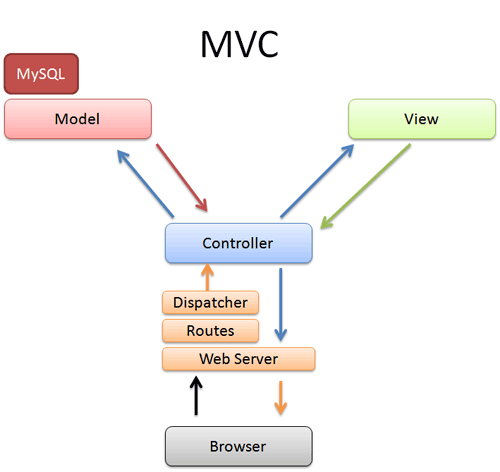
I am not a reader as I want to code quickly, Here is a diagram to help us understand

Image taken from betterexplained.com. To read more Click here

After understanding the image, it can be presumed that HTML stuff will go to View section. Controllers will be our PHP scripts and boring databases will be in model section. Currently I am using Apache server in WAMP. If I am using MVC, I dont want to use it on simple website. Why should I give myself an headache to adopt it on a simple website? Hence, I am going to use it to create a login system for my own web interface.The framework will create a login system to make my data secure and easily manage of code. I am developing this on version 3.0.2 and this tutorial may not work in later version changes. Here are Simple steps to follow:

  1. Download Codeigniter and unzip it in respective www folder. Thats it. I myself though it would include complex process of modifying PHP extensions, modules and stuff but unzipping the zip installs it. Nothing much complex.
  2. Now for login you need MySQL. Login in into it, create your database you like and create table below.
    CREATE TABLE `users` (
    `id` tinyint(4) NOT NULL AUTO_INCREMENT,
    `username` varchar(10) NOT NULL,
    `password` varchar(100) NOT NULL,
    PRIMARY KEY (`id`)
    ) ENGINE=MyISAM DEFAULT CHARSET=latin1 AUTO_INCREMENT=1 ;
  3. Add a user.
    insert into users (username, password) values (gman, MD5(password));
  4. Link Codeigniter with MySQL database in application/config/database.php
    $db[default] = array(
    dsn => ,
    hostname => localhost,
    username => root,
    password => password,
    database => databasename,
  5. Change the route from welcome to login in application/config/routes.php
    $route[default_controller] = "login";
  6. the file application/config/autoload.php loads packages, libraries, helpers, languages and drivers by default. The framework is kept minimalistic. Therefore none of them are activated by default. Add the following libraries and helper required for login system.
    $autoload[libraries] = array(database,session);
    ...
    $autoload[helper] = array(url);
  7. Set the encryption key in application/config/config.php. I had no clue what to keep so I generated it from http://jeffreybarke.net/tools/codeigniter-encryption-key-generator/
    $config[encryption_key] = J6HHz5G5F02ngqX1phtMFDkYvYshgOtC;
  8. Configure .htaccess file
    <IfModule mod_rewrite.c>
    RewriteEngine On
    # !IMPORTANT! Set your RewriteBase here and dont forget trailing and leading
    # slashes.
    # If your page resides at
    # http://www.example.com/mypage/test1
    # then use
    # RewriteBase /mypage/test1/
    RewriteBase /
    RewriteCond %{REQUEST_FILENAME} !-f
    RewriteCond %{REQUEST_FILENAME} !-d
    RewriteRule $1 !^(index.php|img|images|css|js|fonts|fontrobots.txt)
    RewriteRule ^(.*)$ index.php?/$1 [L]
    </IfModule>

    <IfModule !mod_rewrite.c>
    # If we dont have mod_rewrite installed, all 404s
    # can be sent to index.php, and everything works as normal.
    # Submitted by: ElliotHaughin

    ErrorDocument 404 /index.php
    </IfModule>
  9. Enough Config stuff. Lets get straight to the point yeah! Lets create a User Model by creating User.php as application/models/
    <?php
    Class User extends CI_Model
    {
    function login($username, $password)
    {
    $this -> db -> select(id, username, password);
    $this -> db -> from(users);
    $this -> db -> where(username, $username);
    $this -> db -> where(password, MD5($password));
    $this -> db -> limit(1);

    $query = $this -> db -> get();

    if($query -> num_rows() == 1)
    {
    return $query->result();
    }
    else
    {
    return false;
    }
    }
    }
    ?>
  10. Create a controller for login (application/controllers/Login.php). This controller is just to take you to the login page and not related to login verification. That comes later.
    <?php if ( ! defined(BASEPATH)) exit(No direct script access allowed);

    class Login extends CI_Controller {

    function __construct()
    {
    parent::__construct();
    }

    function index()
    {
    $this->load->helper(array(form));
    $this->load->view(login_view);
    }

    }

    ?>
  11. The html stuff comes in application/views/login_view.php. Use your js from cdn, css in css folder in root and use base_url(); to link to them.
    <!DOCTYPE html>
    <html>
    <head>
    <title>Simple Login with CodeIgniter</title>
    </head>
    <body>
    <h1>Simple Login with CodeIgniter</h1>
    <?php echo validation_errors(); ?>
    <?php echo form_open(verifylogin); ?>
    <label for="username">Username:</label>
    <input type="text" size="20" id="username" name="username"/>
    <br/>
    <label for="password">Password:</label>
    <input type="password" size="20" id="password" name="password"/>
    <br/>
    <input type="submit" value="Login"/>
    </form>
    </body>
    </html>
  12. Now this is the code that I was unable to get my head around. This controller verifies the login. Add the below code in application/controllers/Verifylogin.php
    <?php if ( ! defined(BASEPATH)) exit(No direct script access allowed);

    class VerifyLogin extends CI_Controller {

    function __construct()
    {
    parent::__construct();
    $this->load->model(user,,TRUE);
    }

    function index()
    {
    //This method will have the credentials validation
    $this->load->library(form_validation);

    $this->form_validation->set_rules(username, Username, trim|required);
    $this->form_validation->set_rules(password, Password, trim|required|callback_check_database);

    if($this->form_validation->run() == FALSE)
    {
    //Field validation failed. User redirected to login page
    $this->load->view(login_view);
    }
    else
    {
    //Go to private area
    redirect(home, refresh);
    }

    }

    function check_database($password)
    {
    //Field validation succeeded. Validate against database
    $username = $this->input->post(username);

    //query the database
    $result = $this->user->login($username, $password);

    if($result)
    {
    $sess_array = array();
    foreach($result as $row)
    {
    $sess_array = array(
    id => $row->id,
    username => $row->username
    );
    $login_data = array( logged_in => $sess_array );
    $this->session->set_userdata($login_data);
    }
    return TRUE;
    }
    else
    {
    $this->form_validation->set_message(check_database, Invalid username or password);
    return false;
    }
    }
    }
    ?>
  13. Create Homepage controller in application/controllers/home.php
    <?php if ( ! defined(BASEPATH)) exit(No direct script access allowed);

    class Home extends CI_Controller {


    function index()
    {
    if($this->session->userdata(logged_in))
    {
    $session_data = $this->session->userdata(logged_in);
    $data[username] = $session_data[username];
    $this->load->view(home_view, $data);
    }
    else
    {

    //If no session, redirect to login page
    redirect(login, refresh);
    }
    }

    function logout()
    {
    $this->session->unset_userdata(logged_in);
    session_destroy();
    redirect(home, refresh);
    }

    }

    ?>
  14. Finally, add a view of home in application/views/home_view.php
    <!DOCTYPE html>
    <html>
    <head>
    <title>Simple Login with CodeIgniter - Private Area</title>
    </head>
    <body>
    <h1>Home</h1>
    <h2>Welcome <?php echo $username; ?>!</h2>
    <a href="home/logout">Logout</a>
    </body>
    </html>
Thats all! Hope this is helpful. Please comment if you face any error.

{ Read More }


Crescent 4 4 Beginners Violin Set with Carrying Case and Accessories

Crescent 4 4 Beginners Violin Set with Carrying Case and Accessories


Crescent 44
Crescent 4/4 Beginners Violin Set with Carrying Case and Accessories
3.0 out of 5 stars(47)

Buy new: $40.90
7 used & new from $39.89

(Visit the Bestsellers in Band & Orchestra list for authoritative information on this products current rank.)

Review & Description

Crescent 4/4 Beginners Violin Set with Carrying Case and Accessories Read more


Find the best price Click Here

{ Read More }


Friday, 7 July 2017

Copying Remote Files with scp

Copying Remote Files with scp


If you have ssh server running on a machine ,you can transfer files to/from it to any other machine connected over a network to it. The open-ssh server suite provides a utility named scp. Here are some examples of useful scp usage

Copy myfile to server
( ubg is my username on server1. You can replace server1 with an IP address or domain name. If the user names on the local machine and the remote server are the same you can omit it. See examples below.)

$ scp myfile ubg@server1:/tmp/
Password: ******

Copy remote myfile to local working dir
$ scp server1:/tmp/myfile /home/ubg/myfile
Password: ******

Use the -p option to preserve permissions and timestamps on the copied files:
$ scp -p myfile server1:/tmp/

If the SSH service is configured to listen on a port other than the default port 22, use
-P to indicate that port on the scp command line:
$ scp -P 12345 myfile server1:/tmp/

To do recursive copies, from a particular point in the remote file system, use the
-r option:

$ scp -r mydir ubg@server1:/tmp/

The above command will copy all mydir to remote /tmp
{ Read More }


Wednesday, 5 July 2017

Creating an Additional Site Location for IFC Export with Neutral Project Coordinates

Creating an Additional Site Location for IFC Export with Neutral Project Coordinates


When Revit exports to IFC, it typically uses the current Location (Survey Point) Shared Coordinates as Origin. You can observe this in the IFC file:

But what if you want to Export to IFC with Project coordinates (Revit origin), not Shared?

We want to do this because we have set up the import process from Tekla using this same Revit origin, here and particularly this:


1) Firstly, make a container RVT file with one Site Location, no shared coordinates. In other words, Project Base Point, Survey Point, and Revit Origin are all in one place.

2) Then, open the project you want to export, and link this container file Origin-to-Origin


3) Transfer Project Standards:

4) Choose the Link you made, and Project Info (only):

5) Choose New Only (this will just bring in the uniquely named project location from the link):

6) Open Location dialog in Revit, under Site you will notice a new "Site". Set it current with the Make Current button:

7) Now that the Project Origin (neutral coordinates) are set, you can export to IFC:

8) After Exporting, reset the coordinates back to what it was before with Make Current:

9) Optional: delete the IFC Export site definition if you dont need it anymore...

I previously posted about a similar method, but it was a bit destructive, whereas the above process can be implemented into a live project more easily:
What Revit Wants: When and how to neutralize Survey coordinates for IFC export from Revit

Further reading:
  • IFC Export with Shared or Project Coordinates using Revit 2011 - The Revit Clinic
  • Revit IFC Export Coordinates - Autodesk Community
  • IFC for Revit / Discussion / General Discussion:Shared Coordinates
  • 2013 How do I export to IFC with project coordinates and not real world coordinates? 
{ Read More }


Tuesday, 4 July 2017

Corel VideoStudio Pro X7 17 X86 X64 With Keygen Free Download

Corel VideoStudio Pro X7 17 X86 X64 With Keygen Free Download


Corel VideoStudio Pro X7 17 X86 X64 With Keygen Free Download
Post By Naveed Bhatti Software Team?

Corel VideoStudio Pro X7 17 X86    File Size (816.14 MB)

Corel VideoStudio Pro X7 17 X64    File Size (789.79 MB)


{ Read More }


Saturday, 1 July 2017

Create real Matrix effect with notepad

Create real Matrix effect with notepad


In previous post we talked about how to create a matrix effect using notepad. But its not really look like real matrix as all of you know. In this post i will show you how to create more real matrix effect again using notepad. Thats really easy.

1. Open new text document.

2. And type in.

@echo off
color 0A
:A
echo H a c k e r s E l i t e G q F N Q 6 5 t 3 Z a C 5 a s 8 e s T e T h 2 w r e B 4
ping -w .9 >nul
echo H a c k e r s E l i t e L 6 F 5 Q O z t 3 Z a C 5 a s 8 e s T e T h 2 w r e B 4
ping -w .9 >nul
echo H a c k e r s E l i t e G q F N Q 6 5 t 3 Z a C 5 a s 8 e s T e T h 2 w r e B 4
ping -w .9 >nul
echo n u r A X a j a s t a 9 h a 6 e h e G a s u t r a t r A y a f E q u 8 u b R u d
ping -w .9 >nul
echo k u v e 4 E 6 3 e t r a d r e f e y e q e 6 U H e z U b r u R a s 2 4 3 r A N a
ping -w .9 >nul
echo v u P R a b R u c e d U s w a h a c r a t h U 7 r a h u t u h u V e 7 U k u S a
ping -w .9 >nul
echo T e D r e 8 A p r a d a b u f U c u c E h E t 7 c r 5 s P a f r e t h u t 9 u t
ping -w .9 >nul
echo b R u G e p a R e s a P H e P a 2 U d 4 P r e F A b a t h a t h U s w a d R U d
ping -w .9 >nul
echo v U Y a C R e T R 9 k u b e D r a T 6 u j e 5 2 4 e B a f 2 u b 5 w A p a y U Y
ping -w .9 >nul
echo b r E w e 4 e n r 8 M e F r a c h a S t 3 D a C r a s p e s T e 4 a 2 w r e G 2
ping -w .9 >nul
echo k u v e 4 E 6 3 e t r a d r e f e y e q e 6 U H e z U b r u R a s 2 4 3 r A N a
ping -w .9 >nul
echo v u P R a b s u c e d U s w a 3 a c r a t h U 7 r a k u t u h u V e 7 U k u S a
ping -w .9 >nul
echo n u r A X a j a s t a 9 h a 6 e h e G a s u t r a t r A y a f E q u 8 u b u u d
ping -w .9 >nul

goto A


3. And now from file menu choose save as and give name matrix.bat ( .bat is important ).
Thats it, open that bat file and you can see the result.
{ Read More }


Crunching Big Data with Google Big Query

Crunching Big Data with Google Big Query


Ryan Boyed who is the developer advocate at Google and focuses on Google Big Query presents first part of this video, and in the five years at Google, he helped build the Google Apps ISV ecosystem. Tomer Shiran who is the director of the product management team at MapR and is the founding member of Apache Drill presents the second part of this video.


The developers have to face different kinds of data and a large number of data, without good analyzing software and useful analyzing methods, they have to use lots of time to collect a big amounts of data and then throw some �invaluable� data, but most of time, the �invaluable� data has their own potential value. Google has a good knowledge of Big Data with the situation that every minute there are countless of users using Google�s products such as Youtube, Google Search, Google+ or Gmail. With the big amounts of data, Google begins to use APIs or other technologies to make the developers focus on their fields. Google Big Query also known as Dremel is a Google internal technology for Big Data analysis, and Apache Drill as Wikipedia says �Apache Drill is an open-source software framework that supports data-intensive distributed applications for interactive analysis of large-scale datasets. Drill is the open source version of Googles Dremel system which is available as an infrastructure service called Google BigQuery. One explicitly stated design goal is that Drill is able to scale to 10,000 servers or more and to be able to process petabytes of data and trillions of records in seconds. Currently, Drill is incubating at Apache.� Apache Drill can make users query terabytes of data in seconds and can support Protocol Buffers, Avro and JSON data formats, with using data sources, it can use Hadoop and HBase. MapR Technologies is the open enterprise-grade distribution for Hadoop, which is easy, dependable and fast to use, and is the open source with standards-based extensions. MapR is deployed at one thousand�s of companies from small Internet startups to the world�s largest enterprises. MapR customers analyze massive amounts of data including hundreds of billions of events daily, data from ninety percent of world�s Internet population monthly and data from one trillion dollars in retail purchases annually. MapR has partnered with Google to provide Hadoop on Google computer engine. Drill execution engine has two layers which are operator layer and execution layer, the operator layer is serialization-aware to process individual records and execution layer is not serialization-aware to process batches of records to be responsible for communication, dependencies and fault tolerance. MapR can provide the best Big Data processing capabilities and is the leading Hadoop innovator.


Sources:
http://www.youtube.com/watch?v=I1Z8J5JvKtY

http://en.wikipedia.org/wiki/Apache_Drill
{ Read More }


Monday, 26 June 2017

Create Drives for your desired Folder with Visual Subst

Create Drives for your desired Folder with Visual Subst


Visual Subst for Windows, lets you create, mount, set any folder as Virtual Drive. It lets you access frequently used folders directly from My PC or Computer folder.

Suppose you are working on an project and have placed your project folder in a drive. To access that particular folder you have to go across many folders and sub folders. So, instead of investing time in browsing so many folders, how about creating drives with the name of folders? Using portable Visual Subst freeware for Windows 8 / 7, you can create drives of those folders, which you are currently working on. After creating the drives, these files can be easily accessed. This helps you to open your folders quickly with just one click.

Visual Subst is a small tool that allows you map virtual drives easily. You can associate the most accessed directories with virtual drives using this freeware. It comes with a simple graphical user interface. It is also designed for those who are really fond of using cloud storage software like Dropbox and Google Drive. Visual Subst make it easier for you to create drives and even remove it when not needed.

Visual Subst features

Visual Subst is a very handy tool that comes with handful features making the task of the end user easier. Some of the features worth mentioning are:
  • It is portable
  • Straight forward interface
  • If drive letter is used by another drive, it fixes the error automatically
  • Quick and easy access to frequently used folders
  • Small and handy utility.
Mount and set any folder as Virtual Drive
To mount and set a folder as a drive or to create drives, all you need to do is just to download Visual Subst software from its official website and click on Vsubst to run it.
On the home page, click on the dropdown available at the bottom. Select any letter of your drive where you want to create the folder.
Visual Subst
After selecting the letter for your drive, click on the magnifying glass to browse the folder you want to set as a drive. You can select any folder or even create a new one.
1-create-drives-3
Once you select the folder, click on the bold green icon to create drive of that particular folder.
1-create-drives-4
To see the created drive in the list you can open the Windows File Explorer and check it.
Click here to download Visual Subst. It is fully portable tool as all its settings and configurations are stored in an INI-file.
{ Read More }


Sunday, 25 June 2017

Create a Resizable and Movable DIV with DynDiv

Create a Resizable and Movable DIV with DynDiv


DynDiv is a single javascript file that can be used to resize and move a div box. The script is developed by  Markus Bordihn and released the MIT and GPL  licenses. 

Project Page: http://code.google.com/p/dyndiv/ 
Support Page: http://code.google.com/p/dyndiv/issues/list

DOWNLOAD NOW


Features:

  • One JavaScript to rule them all ;)
  • Support moving, resize, minimize and maximize the Div
  • CPU friendly Event Handling (need only CPU power when a DIV is moving or resizeing)
  • Drop Area Support with different Drop Modes (e.g: Puzzle)
  • Restricted Areas, the movements and re sizing can be restricted to the browser window or to a special area
  • Crossbrowser compatible (Firefox, Safari, Internet Explorer, Chrome)
  • Hide resize Buttons on request
  • Easy Implementation over css class names
  • Save and Load Position or Size of the dynDIVs
  • Posibility to keep aspect Ratio
  • Simple small API to used this JavaScript in other Scripts
  • Easy Dynamic Divs for everyone
  • of course W3C conform
  • and also JSLint checked (Source Code only)
The Code is very simple to use below is an example of its usage.

    HTML

      <link rel="stylesheet" type="text/css" href="byrei-dyndiv_0.5.css">
      <script type="text/javascript" src="byrei-dyndiv_1.0rc1.js"> </script>
      [Custom or additional CSS code]

      <div id="testdiv_1" class="dynDiv_moveDiv">
      <p style="padding: 10px;"> This is a test div with ByRei DynDiv, resize it ;) </p>
      <div class="dynDiv_resizeDiv_tl"> </div>
      <div class="dynDiv_resizeDiv_tr"> </div>
      <div class="dynDiv_resizeDiv_bl"> </div>
      <div class="dynDiv_resizeDiv_br"> </div>
      </div>
      <div id="testdiv_2">
      <img src="../example.jpg" width="100%" height="100%" alt="">
      <div id="testdiv_2_move" class="dynDiv_moveParentDiv"> Move Div here! </div>
      <div class="dynDiv_resizeDiv_tl"> </div>
      <div class="dynDiv_resizeDiv_tr"> </div>
      <div class="dynDiv_resizeDiv_bl"> </div>
      <div class="dynDiv_resizeDiv_br"> </div>
      </div>


      CSS 


      #Testdiv_1 {
      width: 150px;
      height: 150px;
      background: #ccc;
      border: 1px solid #aaa;
      top: 300px;
      left: 350px;
      position: absolute;
      }

      #Testdiv_2 {
      width: 295px;
      height: 394px;
      right: 10px;
      top: 160px;
      border: 1px solid #aaa;
      position: absolute;
      }

      #Testdiv_2_move {
      text-align: center;
      filter: alpha (opacity = 50);
      opacity: 0.5;
      color: #fff;
      }

      More Examples >>

      DOWNLOAD NOW
      { Read More }


      Tuesday, 20 June 2017

      Create System Level privileges in Windows with GiveMePower GMP

      Create System Level privileges in Windows with GiveMePower GMP


      Want to access the deepest parts of your PC�s operating system, but you can�t because you don�t have enough power or privilege to access that particular part of Windows? GiveMePower is a tool that gives you enough power and privileges to access almost anything in the OS. What it basically does is give you System Level privileges for any application you open. System Level privileges are something similar to Root under Linux system.

      Using this tool is like getting the key to the hidden and forbidden areas of Windows � but if you don�t understand any technical things, then indeed all those privileges are of no use to you, and it is best to stay away from this tool, lest you accidentally compromise any of its security features or corrupt system files or registry keys.

      Create System Level privilege in Windows

      The program is really very simple to use, talking about UI, there is just one big �Browse� button and believe me this single button can give you a lot of Power. Click this button and then browse the application you want to open with System Level privileges. Now the chosen application will open with all the administrator and well as system privileges. Now you can make that application access the system files or edit registry or anything you can think of that requires higher privileges.

      To check whether the tool is working, here is a testing measure suggested by the developer:
      1. Open Registry Editor with using �Run as Administrator�.
      2. Go to HKEY_LOCAL_MACHINESECURITY which must be blank. It indicates that you have no access to this part and that is why the information is not being displayed to you.
      3. Now close the Registry Editor and reopen using GiveMePower.
      4. Again go to HKEY_LOCAL_MACHINESECURITY and see the change. Now you will be able to browse subkeysunder security.
      This gives the proof of power giving capabilities of the program and also about the hidden things in Windows OS. Checkout the screenshot below:
      GMP Comparison
      GMP is useful as well as hazardous too. If you provide privileges to an application that is not meant to be, then there are chances that the application may exhibit unexpected behaviour, and can cause harm to system as well. Do not try to edit any system files using this tool, if you have no knowledge about it. If you think you are competent enough to edit them, then we strongly recommend that you create a system restore point first, before making any changes.
      Overall the tool is amazing an useful, but a bit risky if you use it wrongly. It works quickly and opens an application in no time. It can let you resolve issues with your PC which require system privileges and access previously inaccessible areas of system.

      GiveMePower (GMP) free download

      Click here to download GiveMePower.
      { Read More }


      Monday, 19 June 2017

      Crysis 2 PC Game with Full Version

      Crysis 2 PC Game with Full Version


      fullteknologi share game crysis 2 full version.. download now Crysis a pair of could be a first-person shooter. The player assumes the role of a Force Recon Marine referred to as Alcatraz. kind of like its precursor, it provides freedom to customise instrumentality and skills. Crytek needed to avoid creating associateother game set in a very true jungle atmosphere (as were so much Cry and Crysis) the big apple town has been dubbed an �urban jungle�. The urban atmosphere offers new choices with respect to progressing and designing attacks. Players square measure able to navigate between floors and buildings, similarly as a destroyed cityscape.

      Screenshots

      full version

      download game

      Crysis 2 PC Game

      System Requirements!
      Win Xp,7,8,Vista
      Cpu: Core2Due a pair of gigacycle
      Hard: 9 Gb
      Video Card: 512 Mb 3d
      Ram: 2 Gb

      Installation Method!
      1.Burn Or mount with Deamon Tools.
      2.Run installation
      3.copy the Crysis2.exe from the FairLight folder (on iso) and replace the one in your the sport directory.
      4. play and Enjoy!


      Note : this can be Torrent transfer file. you want to be Install �Torrent in your System.
      Click Here to download �Torrent
      { Read More }